Sunday, 15 September 2019

Best watchOS 6 Tips and Tricks

With the watchOS update, we’re getting closer to an independent Apple Watch. Now, you can download apps right on the Apple Watch and manage many Watch dependent settings right from your wrist. Here are the best watchOS 6 tips and tricks that you should know about.

Best watchOS 6 Tips and Tricks for Apple Watch

To learn about all the features in watchOS 6 update, take a look at our article here. We’ve also compiled a list of the best iOS 13 features that go with your iPhone.

1. Download Apps Directly From Apple Watch

watchOS 6 App Store
There’s a new App Store app right on the Apple Watch on watchOS 6. When you open the App Store section on the Watch app, you’ll find that there’s nothing there.
The App Store on Apple Watch is fully functional, Watch specific version on your wrist. Open the app and you can browse through top app lists, curated lists and more. You can even search for an app using your voice or by scribbling on the screen.
When you find an app, just tap on the Get button. You can buy paid apps from the App Store as well.

2. Get Web Results in Siri

When you search for something on Siri that it doesn’t have the answer to, it will now show you web results. Previously, Siri would just tell you to look at your iPhone instead.
Now, you can browse through web results and even tap on a link to open it right on your wrist!

3. Browse The Web Using Siri

There’s no Safari app on the Apple Watch yet but you can basically turn Siri into one. Just bring up Siri and say “Open iphonehacks.com” and Siri will open the website for you. You can scroll around, tap on an article to read it in the Reader view format.

4. Delete Stock Apps from Apple Watch

You can now delete stock apps on your Apple Watch, just like you can on your iPhone and iPad.
Open the apps screen on your Apple Watch, find a stock app you want to delete and tap and hold on it. You’ll see an X icon. Tap on it to remove it.
If you want to re-download it, you can just search for it on the App Store.

5. Use The New Calculator App

watchOS 6 Calculator
Apple has integrated a full calculator app on the Apple Watch so you don’t need to download a third-party option. Open the Calculator app and you’ll see the familiar calculator functions on the screen. There’s also a tip calculator built-in.
Tap on the Tip button and you’ll be able to add tip to a bill and split it with your friends as well.

6. Use Smart Lists in Reminders App

watchOS 6 Reminders
Just like in iOS 13, the Reminders app in watchOS 6 has been redesigned. You can open the Reminders app and tap on the + button to enter a new reminder using your voice or by scribbling on the screen.
What’s great about the Reminders app on the Apple Watch are the smart lists. Your reminders are automatically sorted in smart lists like Today, Scheduled, All, and so on. Use the Today smart list to quickly view all the tasks that are due today.

7. Record Voice Memos

watchOS 6 Voice Memos
watchOS 6 includes an incredibly simple version of the Voice Memos app. Just open the app and tap on the Red button to start recording. Tap on the Stop button to stop the recording. All recordings are synced automatically using iCloud so you’ll find the recording on your iPhone, iPad, and Mac.
When you open the Voice Memos app again, you’ll see a list of all your pre-recorded voice memos. Tap on a recording to play it.

8. Check Noise Levels

If you’re using the Series 4 Apple Watch you’ll see a new Noise app in your library. The Noise app is a decibel-o-meter that works directly on your Apple Watch and logs the data in the Health app.
The app has two modes – active and passive. You can open the Noise app to check the decibel level around you at any time. The app will tell you if its’a dangerous level of noise and if you should get out of there.
The app works passively in the background too. And when it detects unusually loud noise it will notify you about it. The app also has a great dynamic complication that will tell you the audio level every time you lift your wrist.

9. Listen to Audiobooks

Apple has a new Books app on the Apple Watch but it’s not for reading books, it’s for listening to them. If you’ve both audiobooks from the iTunes store, they’ll show up here directly. You can connect your AirPods and instantly start streaming or downloading the audiobook.

10. Track Menstrual Health

watchOS 6 Cycle Tracking
There’s a new Cycle Tracking app on the Apple Watch that helps women track their menstrual cycles. You can log your period along with data about your period experience.Also Read:Welltorrent Proxy List

The Health app will then analyze this data and will predict the next period dates. It also has a fertility tracking feature.

11. New Now Playing App

watchOS 6 Now Playing Screen
There’s a new Now Playing app that works similar to the AirPlay screen on the iPhone. It will let you control audio and video on multiple devices. Devices like your Apple TV, HomePod and iPhone will show up. You can tap on a device to control the playback independently.

12. Check Favorites and Collections in the Maps App

The Maps app has two useful features: Favorites and Collections. Once you start using these features on your iPhone, the data will sync automatically on your Apple Watch as well.
So you can access your favorite locations, tap on a location and start navigating to it without searching for anything.

13. Send Animoji Stickers from Apple Watch

watchOS 6 Animoji Stickers
Animoji stickers are now integrated directly in the Messages app’s reply’s screen. When you’re in a conversation and tap on the reply button, you’ll see Memoji Stickers along with the emojis.
Tap on the Animoji Stickers icon, browse through available stickers and tap on one to send it in the chat.

14. Mute Conversations in Messages App

You can now quickly mute a conversation from the Messages app. From the conversations view, swipe left on a conversation and tap on the Mute icon.

15. Get Alternative Glyphs for California Face

The California watch face is one of the best new watch faces in watchOS 6. It’s a great analog watch face that’s quite customizable.
You can change the numerals to roman letters and even Devnagri or Arabic type. Select the California watch face, tap and hold on the screen and then tap on Customize.
watchOS 6 Numerals Watch Face
In the same fashion, you can customize the Numerals and Gradient watch faces as well.

16. Use New Cellular Complication

There’s a new complication that Cellular Apple Watch users will love. Add the Cellular complication and you’ll be able to see the cell signal on your Watch Face. If you tap on the complication you’ll be able to quickly disable the Cellular feature as well.

17. Check Chance of Rain on Watch Face

If you live in a city with unpredictable weather, use the Chance of Rain complication on the Modular watch face. You’ll get a detailed view of the chance of rain over the day.

18. Toggle Bluetooth From Apple Watch

You can finally toggle Bluetooth on the Apple Watch if needed. It’s not a simple toggle in the Control Center but you can access it from Settings app by going to the Bluetooth section.

19. Switch to New List View for Apps

watchOS 6 Apps List
watchOS 6 has a new List view design for the apps screen. It’s a big improvement, with big bold letters and visual feedback when you’re moving between the apps. This might just convince you to get rid of the old honeycomb design. Open the apps screen, Force Touch on the display and then tap on List View to switch to it.

20. Explore New Settings App

watchOS 6 Settings App
As we mentioned at the beginning of the article, watchOS 6 is a clear step towards Watch independence. And one of the places that you can see it is in the Settings app. The Settings app now looks very much like the one on your iPhone or iPad. It’s organized in the same fashion.
Some of the settings that were only on the Watch app on the iPhone are now available on the Apple Watch, including app-specific settings. So you can download an app from the App Store and manage its settings (like how often it requests location), right from your wrist.
When you open the Settings app, you’ll see your profiles name at the top and as you scroll, you’ll see reshuffled sections. Spend some time exploring this app and changing the settings you deep fit.

Sunday, 4 August 2019

Best AirPods Alternatives


When Apple launched the original AirPods in late 2016, it took the market by storm. They worked seamlessly with other Apple products and were a notable step above other Bluetooth earbuds in the market. Fast forward to 2019 and the market is filled with truly wireless earbuds that are better than the AirPods in many ways.

Apple did launch the second-generation AirPods earlier this year with some key improvements but when compared to its competition, the new AirPods lack key features like improved sound quality, water-resistance, and active noise cancellation. With the AirPods, you are getting a level of convenience that no other wireless earbuds on the market can offer. However, if you are ready to give up on that convenience factor, you have plenty of other options to look at. Below are some of the notable AirPods alternative available in the market.
The Best AirPods Alternatives
Sony WF-1000XM3


Sony’s recently launched WF-1000XM3 are easily among the best wireless earbuds in the market. They are not exactly cheap at $229 but offer excellent sound quality and even feature active noise cancellation. The fit is also better than the AirPods, with Sony offering a bunch of ear tips to ensure one finds the perfect seal.

One issue with the Sony WF-1000XM3 is that it lacks any kind of water or sweat-resistance like the AirPods.

The battery life is pretty decent as well and the earphones can last for around 6 hours at medium volume levels with active noise cancellation. With ANC off, the battery life jumps by 2 hours to 8 hours.

One issue with Sony’s offerings is that they are not as discrete to wear as the AirPods or other wireless earbuds. But I guess that’s the price one has to pay for the improved sound quality and active noise cancellation.

The carrying case is also a bit on the bulkier side but it can charge the earbuds three times. Plus, they feature a USB-C port and support fast charging so a 10-minute charge is enough to make the earbuds last for an additional 1.5 hours.

Pros:


Active noise cancellation


Excellent sound quality


Great battery life


USB-C connectivity


Fast charging


Variety of ear tips bundled

Cons:


Expensive


Not as discrete as AirPods


No volume controls


No wireless charging


No voice assistant integration

Buy Now ($228)
Jabra Elite Active 65t


Jabra offers two variants of its wireless buds: the Active Elite 65t and the Elite 65t. The former is a better buy in my opinion due to some design advantages, though the sound quality offered by the two models are the same.

The Jabra Elite Active 65t lack active noise cancellation but they make up for it by offering passive noise cancellation with a very tight in-ear fit. However, some may find this tight fit a bit too uncomfortable after a few hours. Jabra does bundle three different sizes of ear tips to help one find that perfect fit.

If you had not already guessed it from their name, the Elite Active 65t features an IP55 certification which means they are splash and dust-resistant. The Active even comes with a special rubber coating for a secure fit and finish.

In terms of battery life, the Elite Active 65t can last for up to 5-6 hours on a single charge. The carrying case is good enough to charge the earbuds two more times. There’s also fast charging support and a 15-minute charger will be enough to make them last for 1.5 hours.

One notable feature of the Elite Active 65t is that each earbud packs two microphones which means it offers excellent voice quality.

The earbuds also pack an accelerometer which is used for step counting purposes but it has limited use-case.

Pros:


IP55 Sweat and dust-resistance


Better sound quality than AirPods


Excellent microphone quality


Fast charging support

Cons:


No Active Noise Cancellation


No wireless charging


No voice assistant integration

Buy Now ($184.95)
Bose SoundSport Free


The SoundSport Free is basically the wireless version of the regular SoundSport. They have decent sound quality despite lacking active noise cancellation. The design is also pretty good, though the ear hooks mean they are not as discrete as the AirPods. They do have a more secure finish than the AirPods which means one will not have to worry about them falling out during any kind of activity.

The battery life is good enough for around 5 hours of use, with the bundled carrying case good enough to charge the earbuds twice. There’s no fast charging support here which is a bummer.

The SoundSport Free was were buggy when it first launched but recent updates from Bose has greatly improved its overall performance and audio/video syncing issue. Plus, it has also got a nice price cut making it for a pretty tempting deal.

One issue with the SoundSport Free is that during calls, it only acts as a mono earpiece with the sound coming from the right earbud.

Pros:


Superior sound quality than AirPods


Water-resistant

Cons:


Design not as discrete as AirPods


No Active Noise Cancellation


No Wireless Charging


No Fast charging

Buy Now ($199)
Beats Powerbeats Pro


Ironically, one of the best AirPods alternatives comes from Apple itself. The Beats PowerBeats Pro might not feature design as discrete as the AirPods but they make up for it by offering excellent sound quality, better battery life, and sweat-resistance. In addition to this, since the PowerBeats Pro ship with Apple’s H1 chip, they offer the same level of convenience as the AirPods including always-on ‘Hey Siri’ detection and excellent battery life.

It does lack active noise cancellation and wireless charging. The charging case is also extremely bulky and might not fit in everyone’s pocket. The price is also going to be another issue as the PowerBeats Pro is significantly more expensive than the AirPods.

You can find out about all the differences between the AirPods 2 and the Powerbeats Pro in this comparison.

Pros:


Sweat-resistant


Excellent battery life


Always-on ‘Hey Siri’ detection


Excellent sound quality

Cons:


Bulky carrying case


No wireless charging


No Active Noise Cancellation


Expensive

Buy Now ($249.95)
Samsung Galaxy Buds


Samsung’s Galaxy Buds are a great alternative to the AirPods provided you are ready to live with a few compromises. They have a design as discrete as the AirPods and offer decent sound quality and battery life. Even the charging case is compact and easy to carry and it comes with wireless charging support.

The touch control on the Galaxy Buds can be a bit finicky, though Samsung has rolled out multiple updates to improve it.

One issue with the Galaxy Buds is that some of its features are only going to be available to Android users. That’s because there’s no iOS app for the Buds which means iPhone users won’t have access to features like equalizer presets and ambient noise control.

The Galaxy Buds might not be perfect but their value for money ratio is hard to beat.

Pros:


Discrete design


Great battery life


Wireless charging support

Cons:


No Active Noise Cancellation


No iOS app


Value for money

Buy Now ($119.98)


If you lost data after you updated to a new iPhone, you can always use Gihosoft iPhone Data Recovery to get the data back from the old iPhone or backup.You may also like: iphonerecovery.com


Which wireless earbuds do you think are the perfect alternative to the AirPods? Or do you think the AirPods has no competition in the market? Drop a comment and let us know!

Tuesday, 25 June 2019

16-Inch MacBook Pro Said to Launch in September With LCD and 3072x1920 Resolution


Apple plans to release a 16-inch MacBook Pro in September, according to Jeff Lin, an analyst at research firm IHS Markit.


MacRumors concept of 16-inch MacBook Pro display


Lin believes the 16-inch display will be an LCD supplied by LG Display, with a resolution of 3,072×1,920 pixels, as outlined in IHS's latest Emerging PC Market Tracker report, published Thursday and obtained by Forbes.


IHS Markit via Forbes


For comparison, the 15-inch MacBook Pro has a resolution of 2,880×1,800 pixels.

"We foresee that Apple will release a new product [at the] Sep'19 Apple event if there’s no unexpected development issue," Jeff Lin, Associate Director, Consumer Electronics at IHS Markit, said in an email, referring to the 16-inch MacBook Pro.

Korean website The Elec recently reported that Samsung was in talks with Apple about supplying OLED displays for the 16-inch MacBook Pro, but if the IHS Markit report is accurate, the notebook will have a LCD instead.


16-inch MacBook Pro rumors began with well-known analyst Ming-Chi Kuo. Back in February, he said the notebook would launch at some point in 2019 with an "all-new design," but he did not comment on which display technology the notebook would use or share any other details. Sponsor ads:

Gihosoft RePicvid Free Photo Recovery Software provides a free photo recovery software for windows to help users recover the deleted or lost photo for free.

If you lost data after you updated to a new iPhone, you can always use Gihosoft iPhone Data Recovery to get the data back from the old iPhone or backup.You may also like: iphonerecovery.com

iPhone Manager:Get the ultimate Gihosoft iPhone Manager. Free download for PC/Mac.

Read more:Go Live on Tik Tok/Musical.ly in 2019

Read more:best youtube downloader


As would be expected, Lin claims the 16-inch MacBook Pro will feature a newer processor. No other details are known.


IHS Markit has an entire team dedicated to display-related research, with close ties to the supply chain, so this rumor carries some weight. The research firm accurately revealed the original 10.5-inch iPad Pro's resolution nearly four months in advance and also saw LTPO coming to the Apple Watch.


Apple has never unveiled new Macs at its annual iPhone event in September, often waiting for October instead. Either way, it sounds increasingly likely that a 16-inch MacBook Pro is coming at some point this year.

Thursday, 23 May 2019

What to Do When Your iPhone Keeps Turning Off and Back on


Part 1: The Causes of iPhone Keeps Shutting Off

You must wonder why does my iPhone keeps shutting off? Before we show you the method to fix this problem, it is better to briefly know the causes of iPhone randomly turns off.


iOS updating stop in half-way or update failed


Malware attack or faulty apps


Maximum use of storage


Hardware issue—malfunctioning component on your iPhone
Part 2: General Way to Fix iPhone Keeps Turning Down Problem
Method 1: By Hard Resetting iPhone

First of all, you can try hard reboot your iPhone to fix this issue, different iPhone model has different hard resetting steps:


For iPhone 6 and earlier: Press and hold the Home + the Power buttons about 10 seconds until the screen turns black and restart again.


For iPhone 7/7 Plus: Press and hold the Power + Volume Down buttons simultaneously until the Apple logo show up on the screen and then release the buttons immediately.


For iPhone 8/8 Plus/X/XS/XS MAX/XR: Press and release the Volume Up button, then press and release the Volume Down button, finally Press the Power button on the side until the Apple logo appears on the screen.


Method 2: By Updating Apps on iPhone

No matter how strong the App Store is, some software failed update completely may lead to malfunctions in your system, so please update all the apps on your phone.


Also, there also contain poorly coded on the apps which caused this kind of issue, so you can remove some recent installing apps to fix this kind of problem.


Method 3: Free Up Storage Space to Fix This Issues

As we all know, to free up our storage space can optimize the performance of iPhone. Similarly, an insufficient storage space on your device could also cause to remain on a constant bootloop. You can check the storage space on General>>>Manage Storage, if the available space is not sufficient, you can delete some unusable apps or files to free up space.


Or you can use iCareFone to manage your iPhone storage as well, which will provide you to manage files more easily.
Method 4: Fix This Problem via Restoring from iTunes

This way is also very recommended, you can fix iPhone randomly shuts off problem through the way of restoring via iTunes. But if you try this way to solve this problem, you'd better to backup files beforehand to avoid losing data. Follow these simple steps to do it:

Step 1Connect the iPhone to computer with USB cable, and the iTunes will pop up automatically.

Step 2Click the Summary on the left menu, and find "Restore iPhone".


Notes: If you do not backup files, please click "Back Up Now" to backup files to avoid losing data.

Step 3Select the most relevant backup to restore the device to and then click "Restore". Wait for the process to be completed and the device should be back to normal.
Method 5: Fix This Issues through Checking Battery Health

Also, the iPhone shuts down randomly problem sometime just because of your battery problem. You can try to fix this issue by draining the iPhone's battery and recharging it again.

Step 1Leave your iPhone' battery draining until it completely discharge.

Step 2Plug your iPhone to power and wait for charging completely (do not use the phone while charging)


Step 3When your iPhone's battery is full, turn on your iPhone to see if the problem if fixed.
Part 3: 100% Work to Fix iPhone Keeps Turning Off Problem without Data Loss

Sponsor ads:

Gihosoft RePicvid Free Photo Recovery Software provides a free photo recovery software for windows to help users recover the deleted or lost photo for free.

If you lost data after you updated to a new iPhone, you can always use Gihosoft iPhone Data Recovery to get the data back from the old iPhone or backup.You may also like: iphonerecovery.com

If you use android phones, please choose Gihosoft Android Data Recovery.With Gihosoft Android Data Recovery, no longer afraid of data loss!

iPhone Manager:Get the ultimate Gihosoft iPhone Manager. Free download for PC/Mac.

Wednesday, 22 May 2019

How to Bypass Google FRP Account Using OTG Cable


How to Bypass Google FRP Account Using OTG Cable


The second way to perform FRP lock bypass is using OTG cable, which is not recommended. So before you try, here are some limitations of this way that you should learn.


The Cons of Using OTG Way:


You should prepare a USB drive and an OTG cable (this is different from a USB cable).


There is no guarantee that the method will work on your device. It just works for some specific devices.


Step 1: Using your computer, visit this link to download a third-party apk to help you with the FRP bypass.


Step 2: Copy the downloadeded apk to your USB flash drive.


Step 3: Turn on your Android device on which you want to perform the FRP lock bypass. Try to follow the setup, when it asks you to verify your Google account, connect the USB flash drive to your device. For this, you will need to use an OTG cable.


Step 4: Once the file manager app pops up on your device, locate the apk and then install it on your device.


Step 5: When the pop-up “Install blocked” appear, click “SETTIINGS”.


Step 6: Then check “Unknown sources”. Tick “Allow this installation only” and click “OK”.


Step 7: Click “INSTALL” and it will start install the apk on your device. When it finishes, click “OPEN”.


Step 8: Now find the “Backup and reset” option from your device settings. Confirm to erase everything from it.


Step 9: Finally, your device should reboot normally. You now can set it up without verifying any account.
How to Perform FRP Lock Bypass without OTG


Before you try to figure it out, you’d best learn some of this way’s cons because it’s not easy to perform.


The Cons:


The method works on Samsung devices only. There is no guarantee it can work on newer Android versions.


You need to be able to access to your device settings.


The steps may be different for different device model. Sometimes, it may be hard for you to complete the whole process.


You should have an Samsung account.


Step 1: Visit this link to download and install SideSync on your PC. Run SideSync on your computer.


Step 2: Turn on your Android device and follow to set it up. When you see the “Verify your account” page, connect your device to the computer using a USB cable.


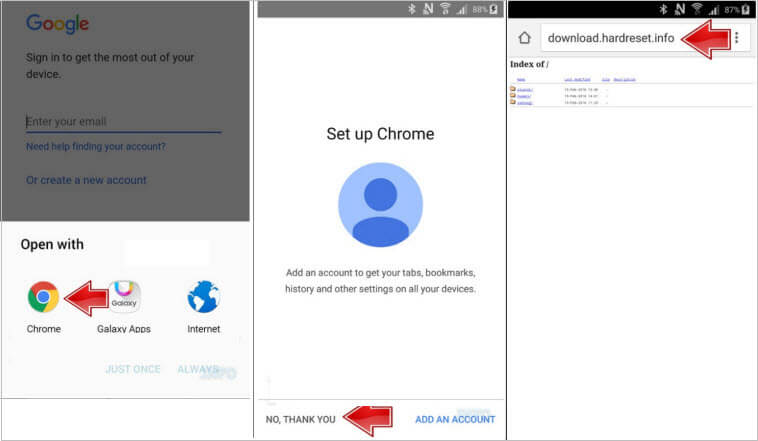
Step 3: On the popup that appears on your Android device, select Chrome. Accept all terms and click “NO, THANK YOU” to set up Chrome.


Step 4: In the Google searcher, type in download.hardreset.info.


Step 5: Open Samsung folder and then Samsung Bypass Google app and click OK to confirm downloading.


Step 6: Go back to the following screen and click OK. Then enter Galaxy Apps.


Step 7: Click Agree then. Then click Apps Searcher.


Step 8: Type ES File Explorer in the search bar and tap on the right app. Click Install for the explorer app.


Step 9: Sign into a Samsung Account. Tap Install again and then Accept and Download.


Step 10: When it finishes downloading, tap Open button.


Step 11: Select Download from the top and open the Samsung Bypass Google app.


Step 12: Click Install from the pop-up Properties window. Then click SETTINGS option when you’re told Install blocked.


Step 13: Tap OK for the Unknown sources and click Install then.


Step 14: Wait for it to finish and you can click OPEN. You now can access your device settings.


Step 15: From the device settings, find and confirm Backup & Reset to erase everything from your device. When it’s done, you now can set up the device without entering the Google account.
Conclusion


If you cannot access all the features on your Android device because the smartphone has the FRP lock, the solutions in this article are ideal for you. Although you can use all the solutions outlined above to bypass Google account FRP


Also Read:Adult Games for Android in 2019


Also Read:Best Project Free TV Alternative


Also Read:22 Best Websites Alternative to RouletteB in 2019


Also Read:Forward Calls on iPhone Xs/X/8/7/6s for Busy Time


Also Read:7 Best Alternatives to Megashare for Movie Watching in 2019


Also Read:Unbrick Your Bricked iPhone XS/XR/X/8/7 in 2019


Wednesday, 15 May 2019

This Power Strip Is Anything But Ordinary [Deals Hub]


Who can really plug in all of their devices with the two outlets on the wall? Power strips are a necessary accessory for any workstation — whether at the office or at home. BESTEK 6-Outlet Power Strip typically retails for $26.99, but it’s currently on sale in the iPhone Hacks Deals Hub for just $22.99. That’s 14% off the regular price.

It takes a lot of electronics to get through the work day. Maybe you need a laptop, a monitor and a printer… but then where do you plug in your phone charger? BESTEK 6-Outlet Power Strip gives you the flexibility you need to get everything done. There are four built-in USB ports that come equipped with fast-charging technologies that supply a charge of up to 4.2 amps. Hate that annoying hum some power strips give out? BESTEK has built-in EMI filters to block out that unwanted line noise. This surge protector also includes some extra safety features, like safety shutters to protect kids from electric shock and a 15-amp circuit-breaker to keep your appliances safe.

In need of some more flexibility in your work life? Grab the BESTEK 6-Outlet Power Strip in the iPhone Hacks Deals Hub for just $22.99 today.

Sponsor ads:

Gihosoft RePicvid Free Photo Recovery Software provides a free photo recovery software for windows to help users recover the deleted or lost photo for free.

If you lost data after you updated to a new iPhone, you can always use Gihosoft iPhone Data Recovery to get the data back from the old iPhone or backup.You may also like: iphonerecovery.com

If you use android phones, please choose Gihosoft Android Data Recovery.With Gihosoft Android Data Recovery, no longer afraid of data loss!

iPhone Manager:Get the ultimate Gihosoft iPhone Manager. Free download for PC/Mac.

Tuesday, 14 May 2019

2 Easy Ways to Download Videos from iCloud


Way 1. How to Download Individual Videos from iCloud Manually

To download videos manually, follow the procedure below.

Step 1: Visit icloud.com using any web browser on your computer.

Step 2: Click the Photos icon on the main interface.


Step 3: Select a video and click the Download icon located on the top right corner of the interface.


Step 4: The video will be automatically downloaded.
Way 2. How to Download All iCloud Videos to PC

Wondering how to get videos from iCloud? Thanks to iCloud for Windows, users can easily download their photos and videos directly to their PC. iCloud for Windows enables users to access photos, mail, bookmarks and other files on multiple devices. Follow the simple and straightforward procedure detailed below.

Step 1: Visit Apple's official site and download iCloud for Windows.

Step 2: Run the installer by following the prompts i.e. accepting terms and conditions and restarting your PC when asked.


Step 3: Enter you're the iCloud credentials i.e. Apple ID and password.


Step 4: Click the Options button next to Photos.


Step 5: Check the iCloud Photo Library option, click Done then click Apply in the interface that follows.


Step 6: Click the Start button at the bottom right of home screen interface or hit the Windows button and click iCloud for Windows.

Step 7: Click Download photos and videos.


Step 8: Check the All checkbox to download all the photos and videos you've saved on iCloud or select the year then click download.


Step 9: To access your photos and Videos click Downloads.


Also Read:Watch Soccer Live on TV
Also Read:movie4k alternatives
Also Read:10 Websites to Watch Indian Live Television
iPhone Manager:Get the ultimate Gihosoft iPhone Manager. Free download for PC/Mac.

Best watchOS 6 Tips and Tricks

With the watchOS update, we’re getting closer to an independent Apple Watch. Now, you can download apps right on the Apple Watch and mana...