Thursday, 23 May 2019

What to Do When Your iPhone Keeps Turning Off and Back on


Part 1: The Causes of iPhone Keeps Shutting Off

You must wonder why does my iPhone keeps shutting off? Before we show you the method to fix this problem, it is better to briefly know the causes of iPhone randomly turns off.


iOS updating stop in half-way or update failed


Malware attack or faulty apps


Maximum use of storage


Hardware issue—malfunctioning component on your iPhone
Part 2: General Way to Fix iPhone Keeps Turning Down Problem
Method 1: By Hard Resetting iPhone

First of all, you can try hard reboot your iPhone to fix this issue, different iPhone model has different hard resetting steps:


For iPhone 6 and earlier: Press and hold the Home + the Power buttons about 10 seconds until the screen turns black and restart again.


For iPhone 7/7 Plus: Press and hold the Power + Volume Down buttons simultaneously until the Apple logo show up on the screen and then release the buttons immediately.


For iPhone 8/8 Plus/X/XS/XS MAX/XR: Press and release the Volume Up button, then press and release the Volume Down button, finally Press the Power button on the side until the Apple logo appears on the screen.


Method 2: By Updating Apps on iPhone

No matter how strong the App Store is, some software failed update completely may lead to malfunctions in your system, so please update all the apps on your phone.


Also, there also contain poorly coded on the apps which caused this kind of issue, so you can remove some recent installing apps to fix this kind of problem.


Method 3: Free Up Storage Space to Fix This Issues

As we all know, to free up our storage space can optimize the performance of iPhone. Similarly, an insufficient storage space on your device could also cause to remain on a constant bootloop. You can check the storage space on General>>>Manage Storage, if the available space is not sufficient, you can delete some unusable apps or files to free up space.


Or you can use iCareFone to manage your iPhone storage as well, which will provide you to manage files more easily.
Method 4: Fix This Problem via Restoring from iTunes

This way is also very recommended, you can fix iPhone randomly shuts off problem through the way of restoring via iTunes. But if you try this way to solve this problem, you'd better to backup files beforehand to avoid losing data. Follow these simple steps to do it:

Step 1Connect the iPhone to computer with USB cable, and the iTunes will pop up automatically.

Step 2Click the Summary on the left menu, and find "Restore iPhone".


Notes: If you do not backup files, please click "Back Up Now" to backup files to avoid losing data.

Step 3Select the most relevant backup to restore the device to and then click "Restore". Wait for the process to be completed and the device should be back to normal.
Method 5: Fix This Issues through Checking Battery Health

Also, the iPhone shuts down randomly problem sometime just because of your battery problem. You can try to fix this issue by draining the iPhone's battery and recharging it again.

Step 1Leave your iPhone' battery draining until it completely discharge.

Step 2Plug your iPhone to power and wait for charging completely (do not use the phone while charging)


Step 3When your iPhone's battery is full, turn on your iPhone to see if the problem if fixed.
Part 3: 100% Work to Fix iPhone Keeps Turning Off Problem without Data Loss

Sponsor ads:

Gihosoft RePicvid Free Photo Recovery Software provides a free photo recovery software for windows to help users recover the deleted or lost photo for free.

If you lost data after you updated to a new iPhone, you can always use Gihosoft iPhone Data Recovery to get the data back from the old iPhone or backup.You may also like: iphonerecovery.com

If you use android phones, please choose Gihosoft Android Data Recovery.With Gihosoft Android Data Recovery, no longer afraid of data loss!

iPhone Manager:Get the ultimate Gihosoft iPhone Manager. Free download for PC/Mac.

Wednesday, 22 May 2019

How to Bypass Google FRP Account Using OTG Cable


How to Bypass Google FRP Account Using OTG Cable


The second way to perform FRP lock bypass is using OTG cable, which is not recommended. So before you try, here are some limitations of this way that you should learn.


The Cons of Using OTG Way:


You should prepare a USB drive and an OTG cable (this is different from a USB cable).


There is no guarantee that the method will work on your device. It just works for some specific devices.


Step 1: Using your computer, visit this link to download a third-party apk to help you with the FRP bypass.


Step 2: Copy the downloadeded apk to your USB flash drive.


Step 3: Turn on your Android device on which you want to perform the FRP lock bypass. Try to follow the setup, when it asks you to verify your Google account, connect the USB flash drive to your device. For this, you will need to use an OTG cable.


Step 4: Once the file manager app pops up on your device, locate the apk and then install it on your device.


Step 5: When the pop-up “Install blocked” appear, click “SETTIINGS”.


Step 6: Then check “Unknown sources”. Tick “Allow this installation only” and click “OK”.


Step 7: Click “INSTALL” and it will start install the apk on your device. When it finishes, click “OPEN”.


Step 8: Now find the “Backup and reset” option from your device settings. Confirm to erase everything from it.


Step 9: Finally, your device should reboot normally. You now can set it up without verifying any account.
How to Perform FRP Lock Bypass without OTG


Before you try to figure it out, you’d best learn some of this way’s cons because it’s not easy to perform.


The Cons:


The method works on Samsung devices only. There is no guarantee it can work on newer Android versions.


You need to be able to access to your device settings.


The steps may be different for different device model. Sometimes, it may be hard for you to complete the whole process.


You should have an Samsung account.


Step 1: Visit this link to download and install SideSync on your PC. Run SideSync on your computer.


Step 2: Turn on your Android device and follow to set it up. When you see the “Verify your account” page, connect your device to the computer using a USB cable.


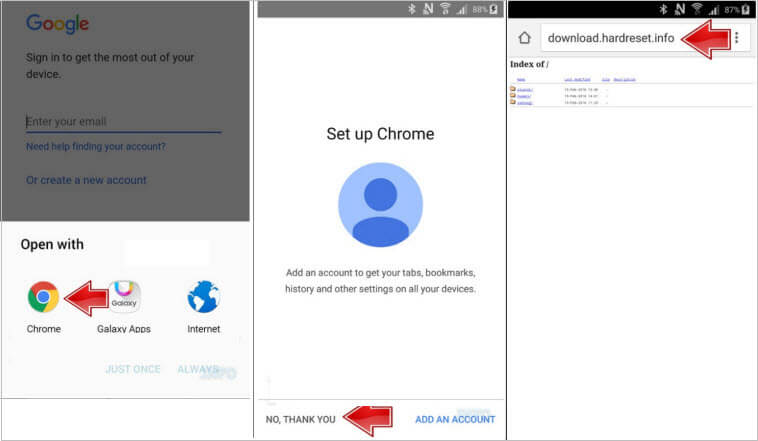
Step 3: On the popup that appears on your Android device, select Chrome. Accept all terms and click “NO, THANK YOU” to set up Chrome.


Step 4: In the Google searcher, type in download.hardreset.info.


Step 5: Open Samsung folder and then Samsung Bypass Google app and click OK to confirm downloading.


Step 6: Go back to the following screen and click OK. Then enter Galaxy Apps.


Step 7: Click Agree then. Then click Apps Searcher.


Step 8: Type ES File Explorer in the search bar and tap on the right app. Click Install for the explorer app.


Step 9: Sign into a Samsung Account. Tap Install again and then Accept and Download.


Step 10: When it finishes downloading, tap Open button.


Step 11: Select Download from the top and open the Samsung Bypass Google app.


Step 12: Click Install from the pop-up Properties window. Then click SETTINGS option when you’re told Install blocked.


Step 13: Tap OK for the Unknown sources and click Install then.


Step 14: Wait for it to finish and you can click OPEN. You now can access your device settings.


Step 15: From the device settings, find and confirm Backup & Reset to erase everything from your device. When it’s done, you now can set up the device without entering the Google account.
Conclusion


If you cannot access all the features on your Android device because the smartphone has the FRP lock, the solutions in this article are ideal for you. Although you can use all the solutions outlined above to bypass Google account FRP


Also Read:Adult Games for Android in 2019


Also Read:Best Project Free TV Alternative


Also Read:22 Best Websites Alternative to RouletteB in 2019


Also Read:Forward Calls on iPhone Xs/X/8/7/6s for Busy Time


Also Read:7 Best Alternatives to Megashare for Movie Watching in 2019


Also Read:Unbrick Your Bricked iPhone XS/XR/X/8/7 in 2019


Wednesday, 15 May 2019

This Power Strip Is Anything But Ordinary [Deals Hub]


Who can really plug in all of their devices with the two outlets on the wall? Power strips are a necessary accessory for any workstation — whether at the office or at home. BESTEK 6-Outlet Power Strip typically retails for $26.99, but it’s currently on sale in the iPhone Hacks Deals Hub for just $22.99. That’s 14% off the regular price.

It takes a lot of electronics to get through the work day. Maybe you need a laptop, a monitor and a printer… but then where do you plug in your phone charger? BESTEK 6-Outlet Power Strip gives you the flexibility you need to get everything done. There are four built-in USB ports that come equipped with fast-charging technologies that supply a charge of up to 4.2 amps. Hate that annoying hum some power strips give out? BESTEK has built-in EMI filters to block out that unwanted line noise. This surge protector also includes some extra safety features, like safety shutters to protect kids from electric shock and a 15-amp circuit-breaker to keep your appliances safe.

In need of some more flexibility in your work life? Grab the BESTEK 6-Outlet Power Strip in the iPhone Hacks Deals Hub for just $22.99 today.

Sponsor ads:

Gihosoft RePicvid Free Photo Recovery Software provides a free photo recovery software for windows to help users recover the deleted or lost photo for free.

If you lost data after you updated to a new iPhone, you can always use Gihosoft iPhone Data Recovery to get the data back from the old iPhone or backup.You may also like: iphonerecovery.com

If you use android phones, please choose Gihosoft Android Data Recovery.With Gihosoft Android Data Recovery, no longer afraid of data loss!

iPhone Manager:Get the ultimate Gihosoft iPhone Manager. Free download for PC/Mac.

Tuesday, 14 May 2019

2 Easy Ways to Download Videos from iCloud


Way 1. How to Download Individual Videos from iCloud Manually

To download videos manually, follow the procedure below.

Step 1: Visit icloud.com using any web browser on your computer.

Step 2: Click the Photos icon on the main interface.


Step 3: Select a video and click the Download icon located on the top right corner of the interface.


Step 4: The video will be automatically downloaded.
Way 2. How to Download All iCloud Videos to PC

Wondering how to get videos from iCloud? Thanks to iCloud for Windows, users can easily download their photos and videos directly to their PC. iCloud for Windows enables users to access photos, mail, bookmarks and other files on multiple devices. Follow the simple and straightforward procedure detailed below.

Step 1: Visit Apple's official site and download iCloud for Windows.

Step 2: Run the installer by following the prompts i.e. accepting terms and conditions and restarting your PC when asked.


Step 3: Enter you're the iCloud credentials i.e. Apple ID and password.


Step 4: Click the Options button next to Photos.


Step 5: Check the iCloud Photo Library option, click Done then click Apply in the interface that follows.


Step 6: Click the Start button at the bottom right of home screen interface or hit the Windows button and click iCloud for Windows.

Step 7: Click Download photos and videos.


Step 8: Check the All checkbox to download all the photos and videos you've saved on iCloud or select the year then click download.


Step 9: To access your photos and Videos click Downloads.


Also Read:Watch Soccer Live on TV
Also Read:movie4k alternatives
Also Read:10 Websites to Watch Indian Live Television
iPhone Manager:Get the ultimate Gihosoft iPhone Manager. Free download for PC/Mac.

Best watchOS 6 Tips and Tricks

With the watchOS update, we’re getting closer to an independent Apple Watch. Now, you can download apps right on the Apple Watch and mana...